Character Animator Film


For this last step of animator CC I had to put together a 60 second film scene along with two characters.

To make this scene I went onto Photoshop and drew an ombre night sky with stars, and I also drew the sidewalk. I decided that my scene was missing something so I went to google to and imported a PNG of grass and flowers along the sidewalk.

I synced up the audio with the two different characters there were separate audio files for each character. I downloaded the audio files and added it to a Media Encoder App and then save it that way I could import it to the Character Animator App and I dragged the audio files under the characters names. Then to sync up the audio files with my character I selected the characters ( holding shift) and along with all of the audio files underneath and clicked on scene and then I synced it when it starts to record.

* I did have a lot of trouble with editing and recording this video because my character was meant to began walking up from the far right side of the screen and approach my partners character ( the one on the left).  I couldn’t figure out why even though I tried to adjust it with the transform behavior but it would still record that way. Also I believe the most challenging part of this was rushing to match the movements with each character’s audio file. You have to switch between characters and move them accordingly. I would definitely play around with this app and create more characters with more intricate and complex features/behaviors. 2

The most fun experience I had with this project was being able to create my own character. I copied a Chloe onto photoshop and then I erased every single feature that she came with and drew my own. Another thing I was excited about was being able to create the different mouth shapes, and being able to play around with the physics aspect when it came to her earrings. One thing I would change and add if I had more time was to be able to play around with the app I would add in physical objects so that my character could interact with it.

-Maria Nguyen P5A

 

Store Front Corrections

store-frontstore-front.jpgFor this edit, I used the stamp tool mostly and the “removing blemishes” tool. I removed the dust from the awning and made it look brand new. To do this I clicked on the circle tool with the band aid over it. I zoomed in closer to where I could really pay attention to detail, and I clicked “alt” while I clicked on the “dirt” to make my awning look more new.
It’s better to click instead of drag. It appears more natural when you click to remove the blemishes. If you drag then it’ll bring along other colors that you wouldn’t want in your edit.

The next thing I did was remove the trashcan. I removed the trashcan by clicking on the Stamp clone tool. To use this tool it’s better to use a rectangular or square brush shape when working with edges. Although in my case I used photoshop on one of the newer computers so I didn’t have that option. I used the circle tool instead, and zoomed in more into detail to make the edges appear more sharper.

The last thing I did was make the sidewalk look realistic and natural with a shadow from the tree. This was by far the most challenging thing to make look “natural”. I had to clone parts of the branches and make it look natural. No part of a tree is perfect or looks the same as another part.

IMG-6970.JPGYes.jpg

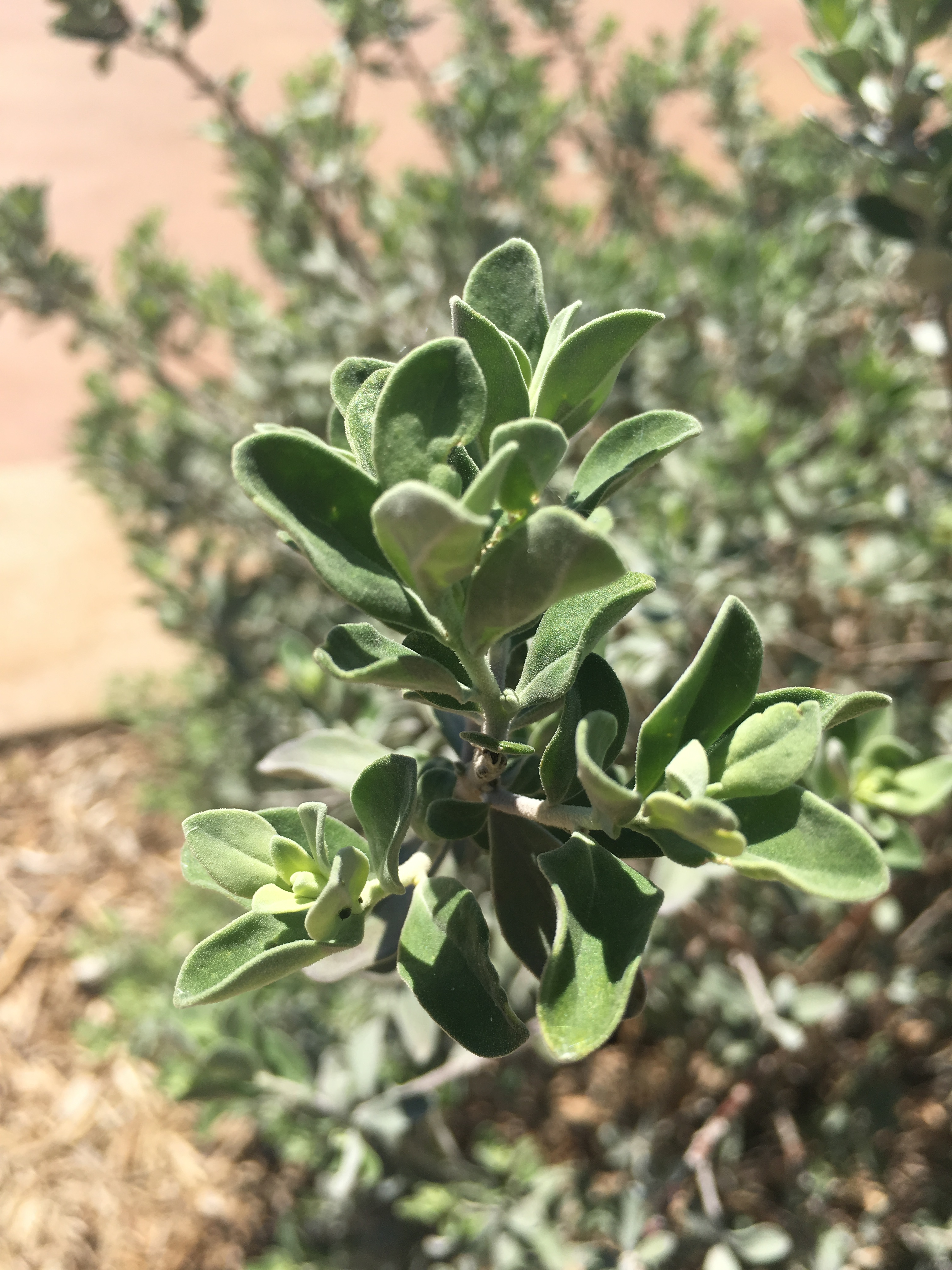
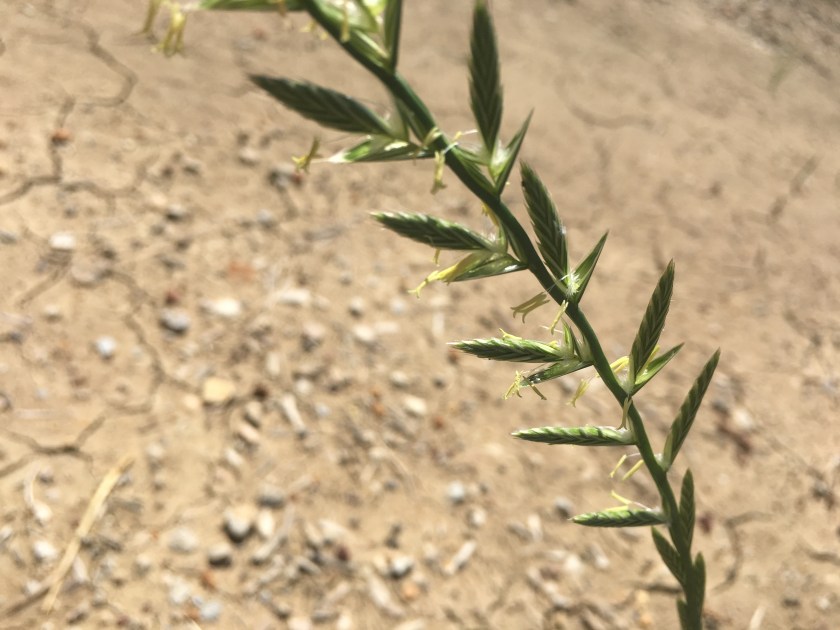
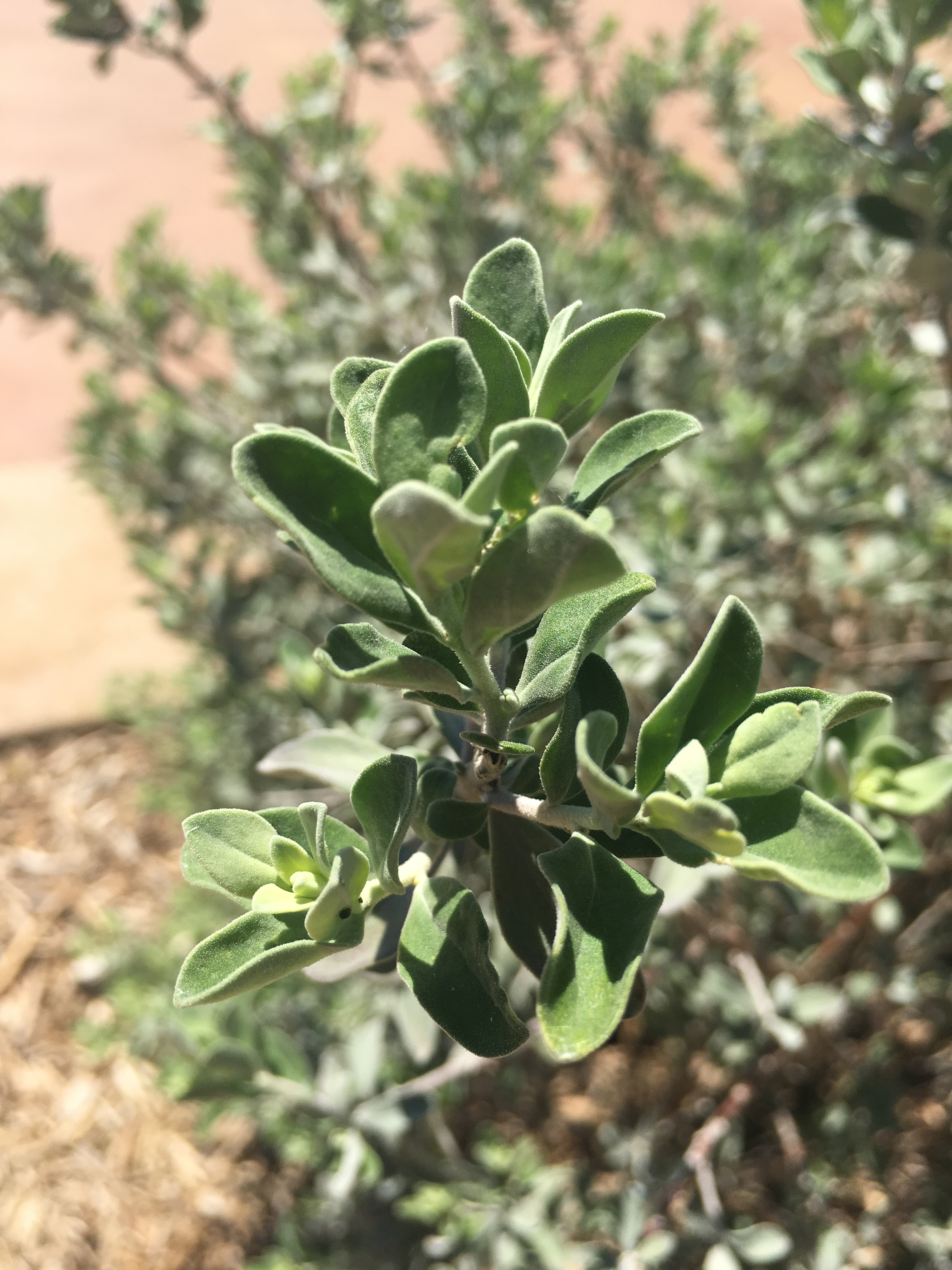
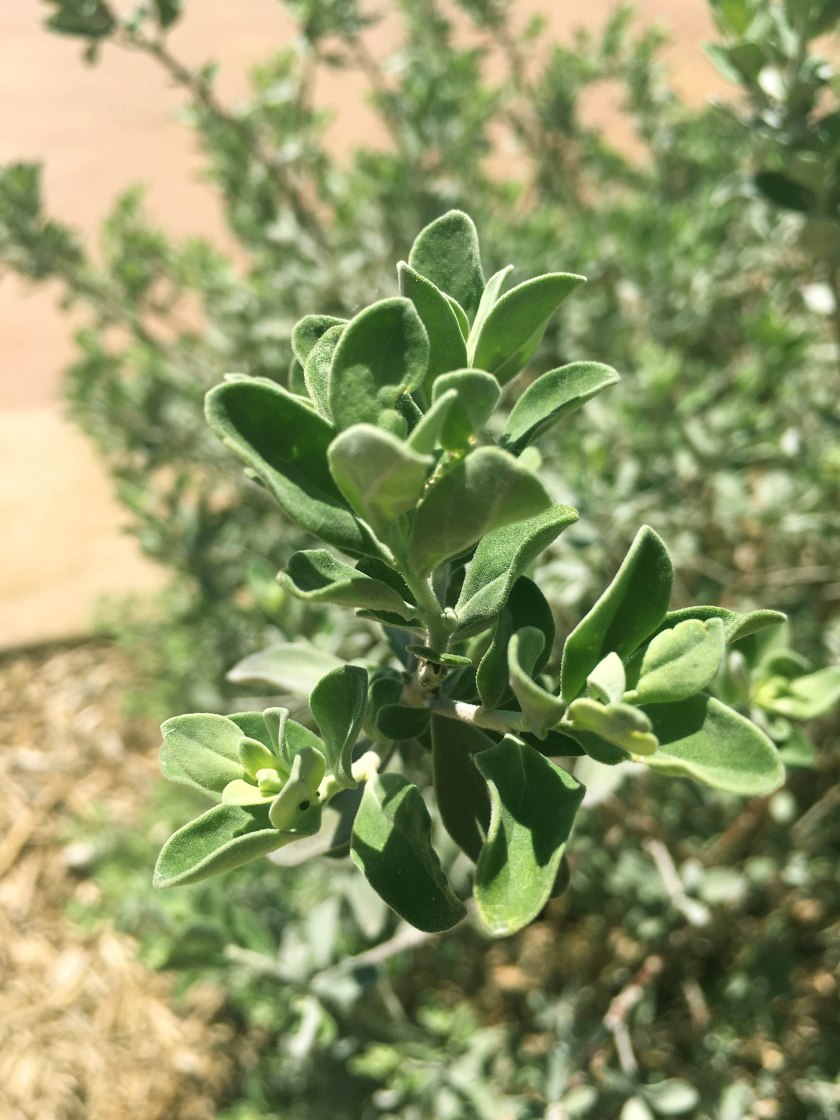
For my own close up picture shot that I took. I made a very slight color adjustment to my picture but it made the biggest difference. I like the way it looks more livelier and more full.

To make this color adjustment I increased the green a little bit. I also decreased the blue and added in a lot more of a yellow tone. To balance out the colors I added Cyan to tie up the colors.

I really like the way the color adjustment really enhanced the green color it already originally had but it made it look ten times more lively in a good natural way.

Color Correction Adjustment

color-correction-imagecolor-correction-image adjustment

The original picture had a yellow cast over the whole picture so I adjusted the color balance that way this picture would look more natural.

First I created a new layer by clicking the half filled circle in the layers panel, and then I clicked Color Balance. I learned that because the original picture had a yellow cast I needed to remove the yellow. The opposite of yellow is Blue so I had to add more of the blue color to subtract the yellow in my current picture.

Then I opened my Curves property adjustment and I played around and adjusted the RGB. I mostly experimented with the Blue and adjusted. I also learned about the bright and dark contrast options as well. When you drag the certain color that means you will be deducting that color, and if you drag the line over the original line then you will be adding that specific color.

I also clicked on Auto while cling the Alt and Ctrl key to a pop up menu and I clicked on Find Dark and Light colors to naturally adjust my photo.


Puppet Update

I changed a lot about my puppet since I had to create a entirely whole new puppet.

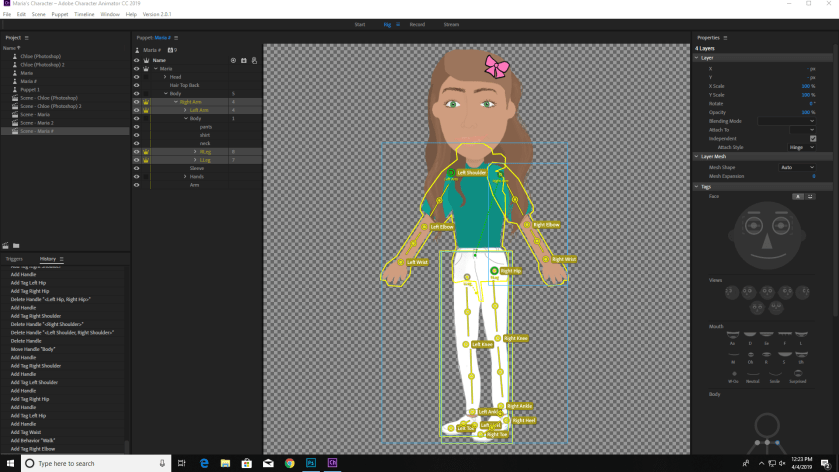
I am attempting to add the walk behavior to my character.

For my character I drew every layer and I also added handles and sticks to support the limbs of my character so it would move properly. Capture.PNG

ARM IK Video #11 Summary

I learned that the ARM IK allows you to adjust the elbow strength, the stretchiness, and allows you to reverse bend left/right.  You want the ARM Ik and Dragger to be at the same level. First you have to click on the origin and tag it as the left shoulder. Select draggable handle and tag as left wrist. Add a new handle in the middle of the elbow. Those 3 are the most important parts when working with the arm if you want it to work properly the way you want it to.

To change the favor of a direction you have to favor the right side of the right arm an favor the left side of the left arm by relocating the handle towards the outer of the arm.

If you mark reverse bend left/right then it will immediately bend the elbow the way you asked for it to respond.

You can also set a shortcut to a key for example, if you click the number 3 this will reset the arm ik rule set. This way you can fix an elbow in a smooth way.

Magnets Video #10 Summary

(Working with new computer but the app/program is not working at the moment)

The magnet feature allows the character to interact with different objects and props.  To turn on these triggers you can use shortcuts by clicking on numbers on your keyboard. You can also make objects attract to each other with a greater amount of force.

If you tag an object as a magnet it has to be dynamic so it can move freely. I learned that you could also make your objects collidable, by marking the “overlap collidables option.”

If you want an option to collide and not go through the screen then for example you can tag a table “collide” so that the object and the table can collide.

I learned that the strength affects how the magnets attract. The higher the strength is the more attractive the object will be to the magnet.

Basic Physics #8 Video Summary

I learned that if you want something to move based off gravity then you must tag your item “dynamic”, and you have to tag using the “collide” tag that way your item/object, can collide with other movable elements. Also I learned that you can use a “draggable” tag so that you can move the element with  your finger (if touch screen) or your mouse.

I learned that to make your object move and not just stay still, you have to go to the Dragger  behavior, and change “After move” to return to rest, and the return duration to 0 seconds. You can also untag collide if you only want the element to interact with it self and nothing else.

Walking #7 Video Summary

I learned that if you wanted your character to walk then you have to use a character that is turned halfway or three quarters of the way, not one that has a full face/body view. The walk behavior is rigged for one or three views. You have to make sure that each part/limb of your character must be independent. (make sure the plus sign is in front of the name)

First you have to go to the behaviors option, press the plus sign and go to walk. This now gives your character the ability to walk. You then have to move the origins of the character down to the feet. Then drag the head origin down to the neck and go to the body tag and select the neck, if you want the bob head affect as your character walks.

For the arms add two handles for the elbow and one towards the wrist. Only tag the wrist not the shoulder and the hip. then add a couple sticks in between the handles. Add handles to the knee, the ankle, the heel, and the toe, then tag them. Move origin to where it connects to the body. Put a handle near the belly button of your character and tag it as the waist.

Once you’re done you can see that the character is walking, but only in one place. So you have to go to “start” and change immediately to “With left and right arrow keys” Then you can adjust anything you find necessary to make it look like your character is walking normally.