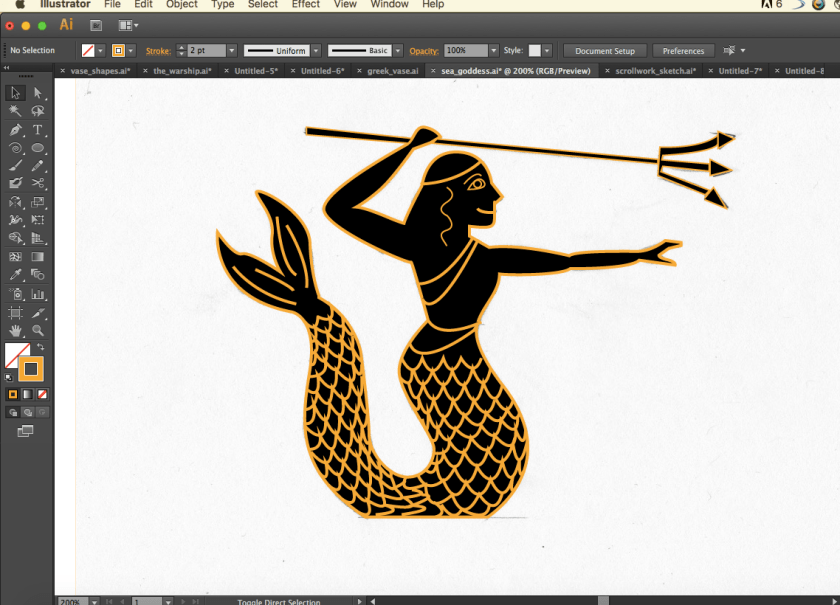
PEN tool update
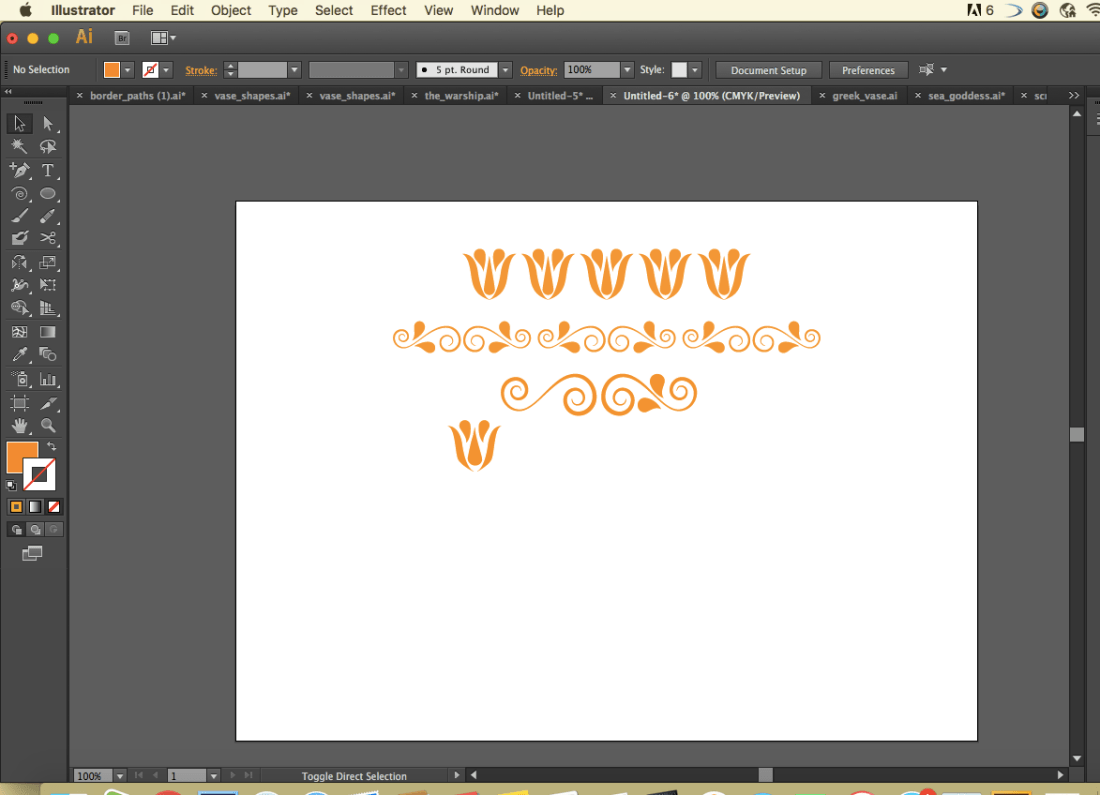
Ninja
HIPPO!

Batman Logo

Pen Tool Warship UPDATE
To make this Warship I mostly used anchor point tool to make the curves. I held option/alt and hover and then drag to where I wanted the curves to be when it came to make the sail part.
I learned to use the rectangle tool as a shortcut instead of using the pen tool is an easier way. 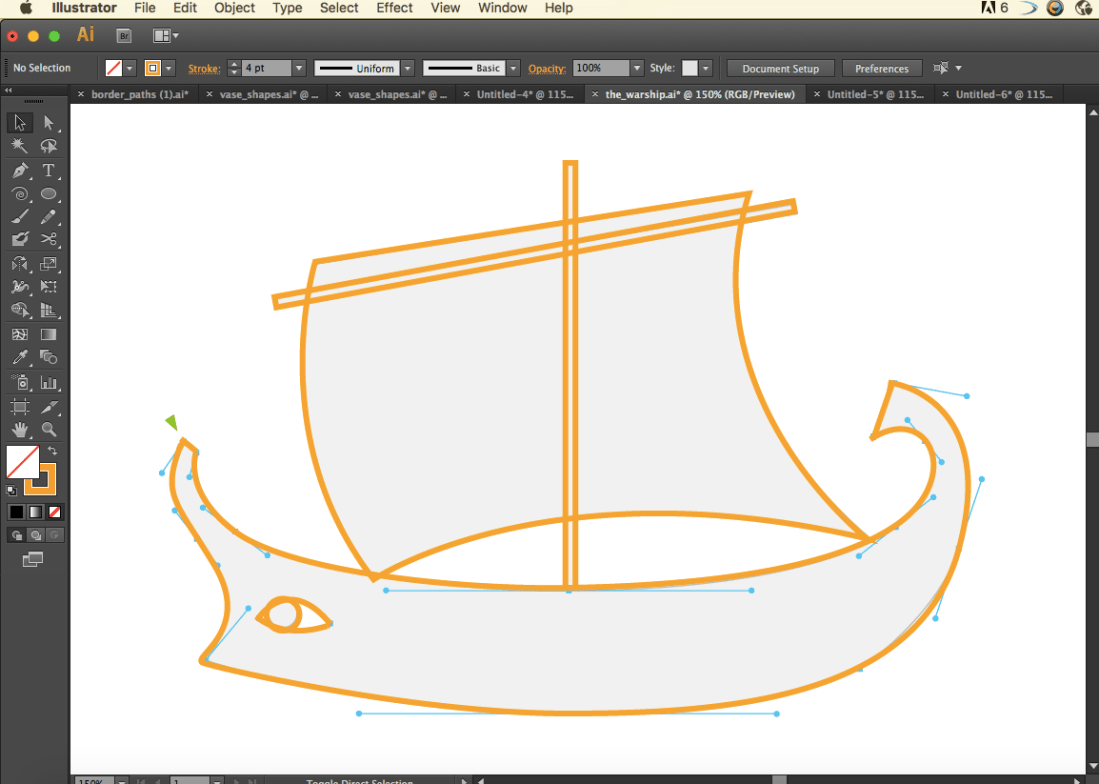
Pen Tool Vase UPDATE


In these couple videos I learned to draw a vase using the pen tool.
In order create this you must use all the proper techniques to drawing the curves and straight lines and using the anchor points. When I have finished drawing the vase halfway then I clicked “Shift x” on my keyboard to fill in the outline. Then to reflect you click “o” on your keyboard. Then you must drag the shape to the other side while holding “shift” to perfectly align it. While holding down shift you also have to hod down “alt/option” that way can copy the shape so it’s one both sides.
Pen Tool Update
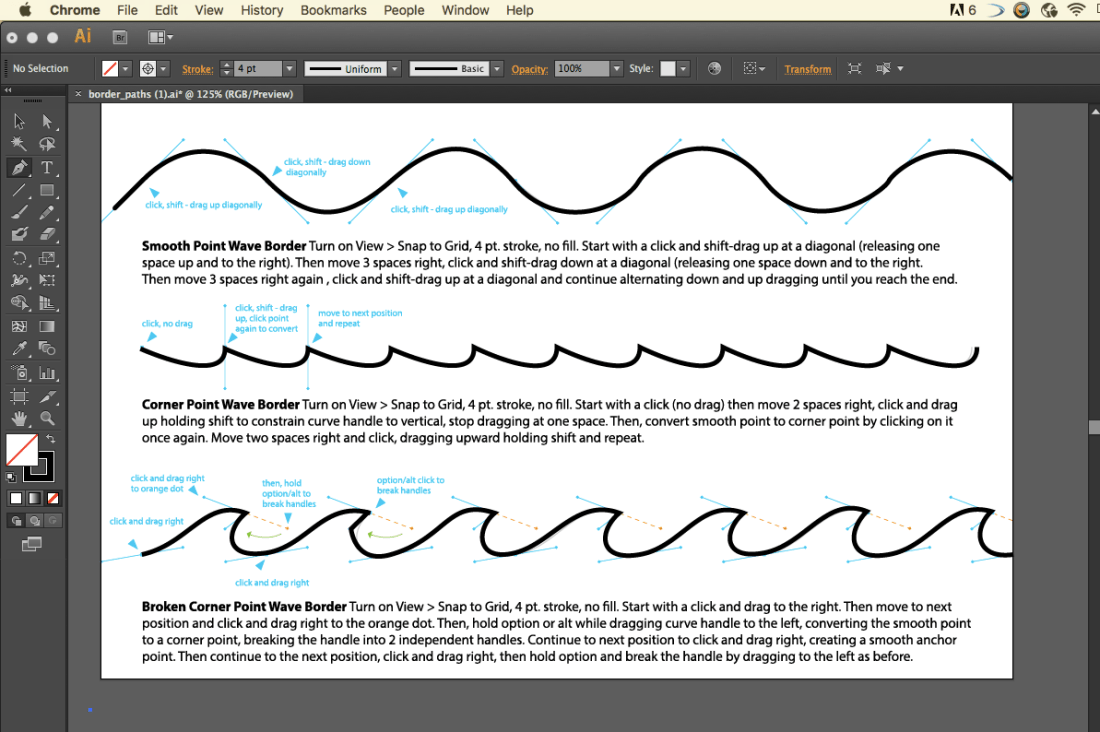 For the corner wave border I learned that you have to click and without dragging you have to click on the next point and THEN you drag to the desired wave width.
For the Corner Point Wave Border I learned that you had to click and drag and then for the tip of the wave you have to click again and drag and while holding the shift button drag it to the next endpoint. The shift button make your line cut in half so that way one end can move someplace else. Then you click to make the bottom of the wave and repeat, and so on…
Pen Tools Basics UPDATE
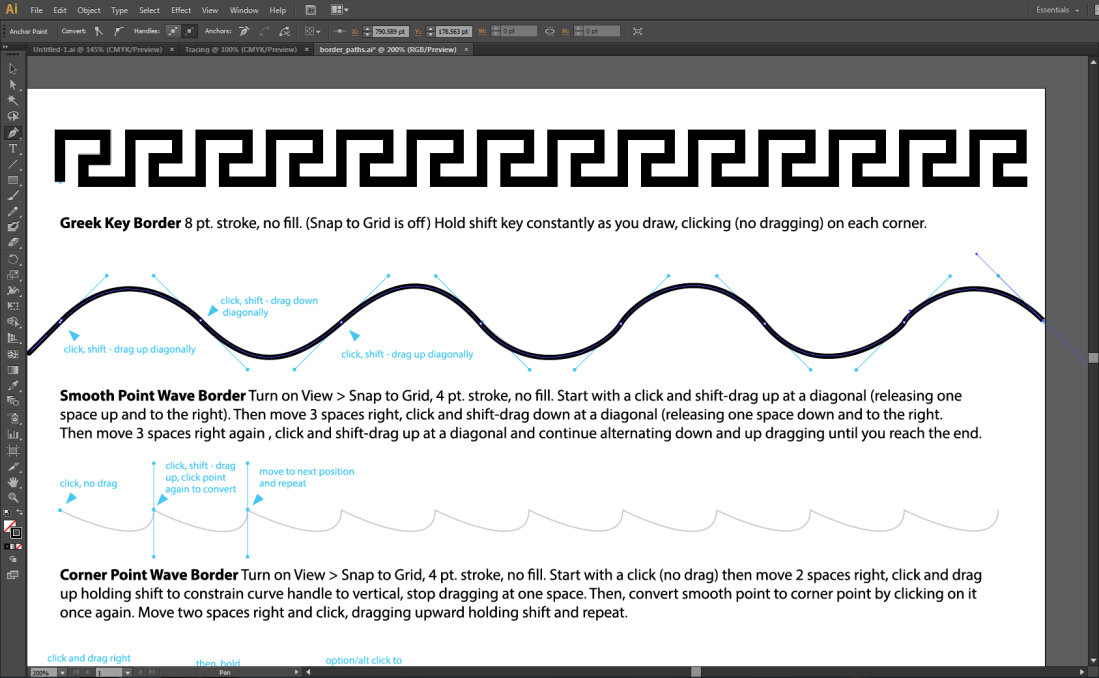
In this portion “Getting Started with the pen tool” (Border Drawing 1) I learned how to trace straight lines and Smooth Wave lines using the pen tool.
In order to trace the straight lines I had to hold down the shift key. To draw the wave lines with the pen tool I would have to click then drag up until the line was aligned with the first layer. Then I click on the next wave where I plan to draw it.
Christmas Card

 Juicymars' Blog